React PDF bbox Highlighting: Show RAG Citations on the Page
React PDF bbox highlighting: display RAG citations and AI-extracted entities as coordinate overlays on the page, not just as a sidebar text dump
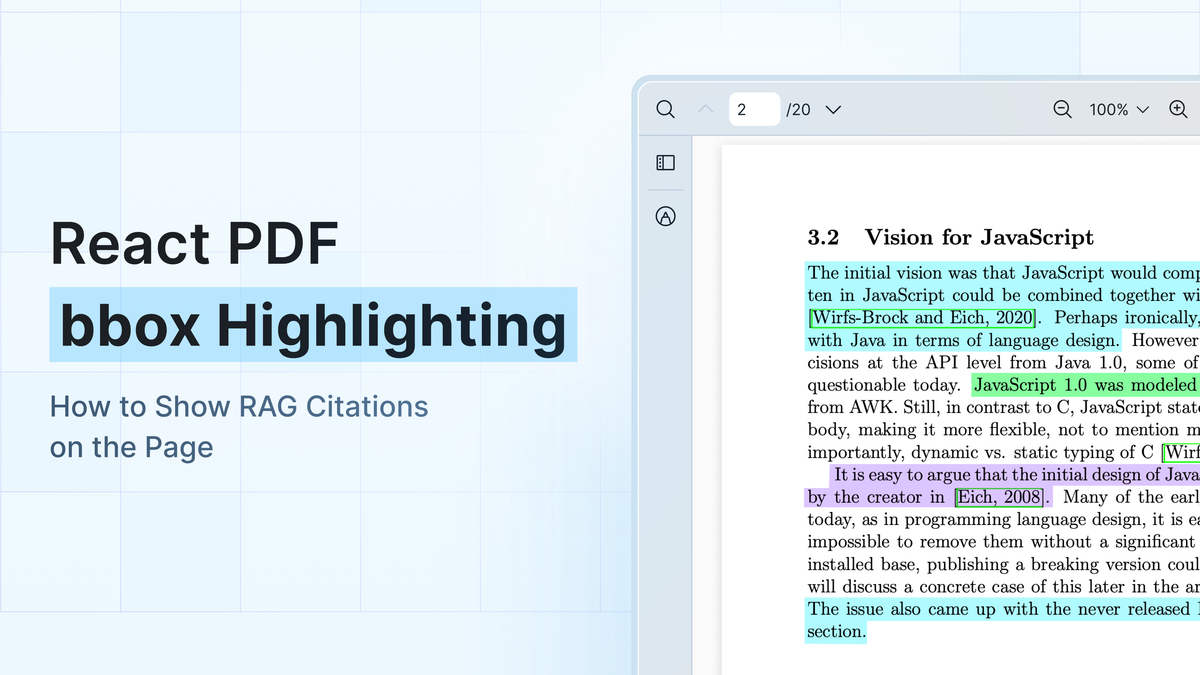
"Okay, but where does it actually say that?" It's a fair question, and it's usually where the chat-with-PDF demo loses them. The answer is right and cites its source, "report.pdf, page 3," but the user still scans the whole page to find the line behind the answer. The citation pointed to the page, not the spot. Closing that gap is what React PDF bbox highlighting is for.
I've shipped a few of these, and the citation display is the part I keep underestimating. Retrieval and generation are the interesting part to build, but what earns a user's trust is the box around the exact clause the answer leaned on. Drawing that box is the hard part, and it's the step most chat-with-PDF tutorials skip. Underneath, it's just rendering bounding-box (bbox) coordinates as overlays on the rendered page.
We covered the sidebar version in an earlier walkthrough, Building a Simple PDF AI Chat App with Next.js, React PDF Kit and OpenAI. This one is the on-page half: The citation drawn as a box on the PDF itself, not text in a sidebar. One disclosure up front: I work on React PDF Kit, the viewer I use for the overlay code below. The problem and the coordinate math stay the same whatever viewer you pick, so most of this carries over.
The problem: Bbox coordinates with nowhere to land
Your extraction pipeline already has what you need. OCR, a layout parser, an LLM returning structured spans, whatever you run, the output includes a page number and a bounding box for each chunk or entity. The coordinates exist. The trouble starts at the viewer, because most React PDF libraries give you a rendered page and no way to draw anything on top of it at a given coordinate.
So you build the overlay yourself. With a renderer like wojtekmaj/react-pdf, that means stacking an absolute-positioned layer over the page and placing each box by hand:
// wojtekmaj/react-pdf: you position and scale every overlay yourself
<div style={{ position: "relative" }}>
  <Page pageNumber={pageNumber} scale={scale} />
  {regions.map((r) => (
    <div
      key={r.id}
      style={{
        position: "absolute",
        left: r.x * scale, // you own the scale math
        top: r.y * scale,
        width: r.width * scale,
        height: r.height * scale,
        background: "rgba(255, 214, 0, 0.35)",
        pointerEvents: "none",
      }}
    />
  ))}
</div>
That works until someone zooms. Now you're tracking the scale factor and multiplying every coordinate by it on each render. Rotate the page and it breaks again, because the transform you need for a 90-degree rotation isn't a simple multiply. None of it is hard, but it's easy to get wrong. A citation that lands two lines from where it belongs quietly costs you the user's trust.
Headless toolkits get you closer still. @anaralabs/lector gives you a HighlightLayer and a highlight state you populate with coordinate rectangles, each one tagged as pixels or percentages so lector can place it. With a bare renderer, that coordinate mapping is yours to do by hand.
There are two catches. lector is headless, so you assemble the viewer surface from its primitives and own how every control looks. And a highlight is a rectangle. When a citation wants a labeled chip or a numbered marker, a plain colored box isn't enough.
None of them just takes coordinates and draws the citation for you. What you actually want for RAG citations is to pass coordinates and get back a correctly placed, zoom-aware overlay that can be any JSX you like. That's what React PDF Kit's useElementPageContext hook does, and it's built for exactly this: AI-extracted entities, search results, and RAG citation overlays.
How bbox highlighting works with useElementPageContext
useElementPageContext gives you a few functions. The two you'll use most are updateElement to add overlays to a page and clearElements to remove them. You call it inside a component that sits under RPProvider, and that component renders nothing itself. It just registers overlays.
import { useElementPageContext } from "@react-pdf-kit/viewer";
import { useEffect } from "react";

function CitationLayer() {
  const { updateElement, clearElements } = useElementPageContext();

  useEffect(() => {
    // page numbers are 1-based
    updateElement(3, (_prev, _dimension, _rotate, scale) => {
      const s = scale / 100; // scale is a zoom percentage: 150 means 1.5x
      return [
        <div
          key="cite-1"
          style={{
            position: "absolute",
            left: 100 * s,
            top: 200 * s,
            width: 260 * s,
            height: 48 * s,
            background: "rgba(255, 214, 0, 0.35)",
            pointerEvents: "none",
          }}
        />,
      ];
    });
    return () => clearElements(3);
  }, [updateElement, clearElements]);

  return null;
}
The important part is the callback. updateElement takes a 1-based page number and a function that returns the elements for that page. That function receives the current scale as a zoom percentage, so 100 is actual size and 150 is 150%. You divide by 100 to get a multiplier and apply it to your coordinates. When the user zooms, the callback runs again with the new scale, and your overlay tracks the zoom without any extra work from you. That single detail is the difference between this and the hand-rolled version above.
The coordinates you pass are in PDF points, where one point is 1/72 of an inch, measured from the top-left corner of the page at 100% zoom. Return whatever JSX you want at those coordinates (a semi-transparent box, a numbered marker, an image). pointerEvents: "none" keeps the overlay from swallowing clicks meant for the page underneath. The overlays are temporary by design. They're derived from your data and re-registered on each render, not written into the PDF, which matters for the distinction we'll get to in a moment.
A worked example: React PDF bbox highlighting for RAG citations
Here's the whole thing end to end. Start with a stand-in for your retrieval output. A real pipeline returns something shaped like this per cited chunk, and for the tutorial a hardcoded array stands in for the vector search and the model call:
// Stand-in for your RAG pipeline's output.
// Real pipelines return a page and a bbox per cited chunk.
const citations = [
  {
    id: 'c1',
    page: 4,
    bbox: { x: 35, y: 249.5, width: 522, height: 11 },
    label: 'Total net sales: $117,154M (vs. $123,945M prior year)',
  },
  {
    id: 'c2',
    page: 4,
    bbox: { x: 35, y: 406.8, width: 522, height: 10.7 },
    label: 'Operating income: $36,016M (vs. $41,488M prior year)',
  },
  {
    id: 'c3',
    page: 4,
    bbox: { x: 35, y: 454.5, width: 522, height: 11 },
    label: 'Net income: $29,998M (vs. $34,630M prior year)',
  },
];
Now a CitationLayer that groups those by page and registers one overlay set per page. Grouping matters because updateElement works a page at a time, and you don't want to call it once per citation when three of them share a page:
import { useElementPageContext } from "@react-pdf-kit/viewer";
import { useEffect } from "react";

function groupByPage(items) {
  return items.reduce((acc, item) => {
    (acc[item.page] ||= []).push(item);
    return acc;
  }, {});
}

function CitationLayer({ citations }) {
  const { updateElement, clearElements } = useElementPageContext();

  useEffect(() => {
    const byPage = groupByPage(citations);

    for (const [page, items] of Object.entries(byPage)) {
      updateElement(Number(page), (_prev, _dimension, _rotate, scale) => {
        const s = scale / 100;
        return items.map((c) => (
          <div
            key={c.id}
            title={c.label}
            style={{
              position: "absolute",
              left: c.bbox.x * s,
              top: c.bbox.y * s,
              width: c.bbox.width * s,
              height: c.bbox.height * s,
              background: "rgba(255, 214, 0, 0.35)",
              outline: "1px solid rgba(240, 180, 0, 0.9)",
              pointerEvents: "none",
            }}
          />
        ));
      });
    }

    return () => {
      for (const page of Object.keys(byPage)) clearElements(Number(page));
    };
  }, [citations, updateElement, clearElements]);

  return null;
}
Then drop CitationLayer into the viewer as a sibling of the layout. It has to live under RPProvider so the hook can find its context:
import { RPConfig, RPProvider, RPLayout, RPPages } from "@react-pdf-kit/viewer";

export default function CitedReport() {
  return (
    <RPConfig licenseKey="YOUR_DOMAIN_TOKEN">
      <RPProvider src="/report.pdf">
        <CitationLayer citations={citations} />
        <RPLayout toolbar>
          <RPPages />
        </RPLayout>
      </RPProvider>
    </RPConfig>
  );
}
That's a working viewer with citation boxes on page 4, and the boxes stay put when the user zooms. The coordinates in the example are already top-left points, which keeps the focus on the wiring. Real pipeline coordinates usually need a conversion step first.
Common patterns for citation overlays
Most of these patterns are small variations on the CitationLayer from the worked example.
Highlight the region for the current answer. Most chat-with-PDF UIs show one citation at a time. The box for the answer on screen, and nothing left over from the last three questions. Keep the active citation in state and register only that one. A small layer keyed on that state does the whole job:
import { useElementPageContext } from '@react-pdf-kit/viewer';
import { useEffect } from 'react';
import type { Citation } from './citations';
import { PAGE_HEIGHT, PAGE_WIDTH } from './citations';
import { rotateBox } from './coords';

export function ActiveCitationLayer({
  citation,
}: {
  citation: Citation | null;
}) {
  const { updateElement, clearElements, scrollToElement } =
    useElementPageContext();

  useEffect(() => {
    if (!citation) return;
    scrollToElement(citation.page, 0);
  }, [citation, scrollToElement]);

  useEffect(() => {
    if (!citation) return;

    updateElement(citation.page, (_prev, _dimension, rotate, scale) => {
      const s = scale / 100;
      const b = rotateBox(citation.bbox, PAGE_WIDTH, PAGE_HEIGHT, rotate);
      return [
        <div
          key={citation.id}
          style={{
            position: 'absolute',
            left: b.x * s,
            top: b.y * s,
            width: b.width * s,
            height: b.height * s,
            background: 'rgba(255, 214, 0, 0.35)',
            outline: '1px solid rgba(240, 180, 0, 0.9)',
            pointerEvents: 'none',
          }}
        />,
      ];
    });

    // Cleanup runs for the PREVIOUS citation before the next effect,
    // so the old box clears whenever the answer changes.
    return () => clearElements(citation.page);
  }, [citation, updateElement, clearElements]);

  return null;
}
Pass the current answer's citation in as a prop. When the answer changes, React runs the cleanup from the previous render first, clearing the old citation's page, then registers the new box, so exactly one highlight is ever on screen and it follows the conversation instead of piling up. If the new citation sits on a different page, pair this with the scrollToElement call from earlier to move the reader there.
One thing to keep straight: clearElements(page) is page-level, so it removes every box your layer put on that page, not just one. For a layer that owns a single active highlight, that's exactly the behavior you want. To show several boxes at once, return them all from one updateElement call, the way the worked example groups a page's citations.
Overlay extracted entities. Invoice and contract tools often mark every detected field. Totals, dates, party names. Same layer, one box per entity, colored by type. Because the callback returns arbitrary JSX, you can render a small label or a numbered chip instead of a plain box when a page has enough fields that boxes would overlap.
Jump to the cited location. Registering an overlay draws the box, but it doesn't move the viewer on its own, and the box only paints once its page scrolls into view. When an answer cites page 12, you want to send the reader there. The same hook gives you scrollToElement(page, index), which scrolls to that specific registered box. Give it a brief flash as it comes into view, so the cited spot catches the reader's eye.
What this isn't: Bbox overlays versus text highlighting
React PDF Kit has a second highlighting hook, and mixing them up is the most common mistake I see. useHighlightContext highlights text and keywords. You hand it a string, it finds that string in the text layer and marks the matches. That's the right tool for "highlight every occurrence of the word 'confidential'."
useElementPageContext is the coordinate tool. It doesn't search for anything, it draws what you tell it, where you tell it, in bbox coordinates. The split is really about what you start from: useHighlightContext starts from a string and finds the box for you off the text layer, while useElementPageContext starts from coordinates you already have.
RAG citations come from your pipeline as coordinates, not as search strings, so this is the hook you want. The two examples sit next to each other in the docs under a shared "Highlight" menu, which is part of why they get confused. Be deliberate about which one your use case needs.
One more boundary, worth stating plainly: these overlays are a display primitive, not an annotation feature. They render on their own overlay layer above the page canvas, separate from the PDF's annotation layer, and nothing here creates or saves annotations into the PDF.
React PDF Kit doesn't ship an annotation tool for end-user highlights, comments, or stamps. The boxes are computed from your data on every render and thrown away when the component unmounts. If your users need to draw their own marks and keep them, that's a job for an annotation library, not this hook.
Pitfalls:
Rotation is yours to handle. The viewer rotates the page canvas and its text layer for you, but the custom overlay isn't part of that rotation. Your box is the one thing that stays put, so when the page turns, you turn the coordinates. The rotate argument left unused so far is the third callback param, and it's the page rotation in degrees, clockwise: 0, 90, 180, or 270.
A 90-degree turn isn't a plain multiply. The page box swaps width for height, and a box that sat near the top-left ends up near the top-right. Map the unrotated box into the rotated frame first, then scale it the same way you scale everything else:
// rotate: page rotation in degrees, clockwise (0, 90, 180, 270).
// pageWidth, pageHeight: the UNROTATED page size in points.
function rotateBox({ x, y, width: w, height: h }, pageWidth, pageHeight, rotate) {
  switch (((rotate % 360) + 360) % 360) {
    case 90:  return { x: pageHeight - y - h, y: x,                 width: h, height: w };
    case 180: return { x: pageWidth - x - w,  y: pageHeight - y - h, width: w, height: h };
    case 270: return { x: y,                  y: pageWidth - x - w,  width: h, height: w };
    default:  return { x, y, width: w, height: h }; // 0, no change
  }
}
Then run each box through it in the callback, where the rotate arg finally earns its place:
updateElement(c.page, (_prev, _dimension, rotate, scale) => {
  const s = scale / 100;
  const b = rotateBox(c.bbox, pageWidth, pageHeight, rotate);
  return [
    <div
      key={c.id}
      style={{
        position: "absolute",
        left: b.x * s,
        top: b.y * s,
        width: b.width * s,
        height: b.height * s,
        background: "rgba(255, 214, 0, 0.35)",
        pointerEvents: "none",
      }}
    />,
  ];
});
Test all four rotations, not just zero. Rotation bugs are easy to miss because most sample PDFs are upright, and the first time a scan comes in turned 90 degrees your citations land in the margin.
Overlay cost tracks DOM nodes, not box count. React PDF Kit virtualizes pages, so citations on page 150 don't force pages 1 through 149 to render first. On a page that is rendered, the thing to watch isn't how many boxes you register but how many DOM nodes they add up to.
A few hundred plain rectangles is nothing. A single overlay that renders a richly nested label thousands of times over is where you'll feel it, the same way any component that mounts ten thousand elements would. So when you profile, watch the total node count on the page, not the number of citations. Grouping a page's citations into a single updateElement call, the way the worked example does, keeps the overhead low.
Overlays scale on mobile, but tapping is on you. Pinch-zoom changes the same scale the callback hands you, so boxes track a two-finger zoom the way they track the toolbar. The catch is pointerEvents: "none", which keeps overlays from blocking the page but also means a citation box can't be tapped. If you want the citation box to be tappable on a phone, say to open its source, set pointerEvents: "auto" on that element and make the tap target big enough for a thumb.
Wrapping up
The retrieval work gets the attention, but the citation overlay is what makes a chat-with-PDF product feel trustworthy. That's really all React PDF bbox highlighting comes down to. Get the coordinate convention right and register your boxes a page at a time. The viewer handles the zoom.
The primitive that saves you the manual parts, the scale tracking and the per-page wiring, is useElementPageContext. If you want it alongside a full viewer, start from the React PDF Kit docs. Whatever you build on, put the box on the page. That's the part your users actually read.