

Set the Initial Page
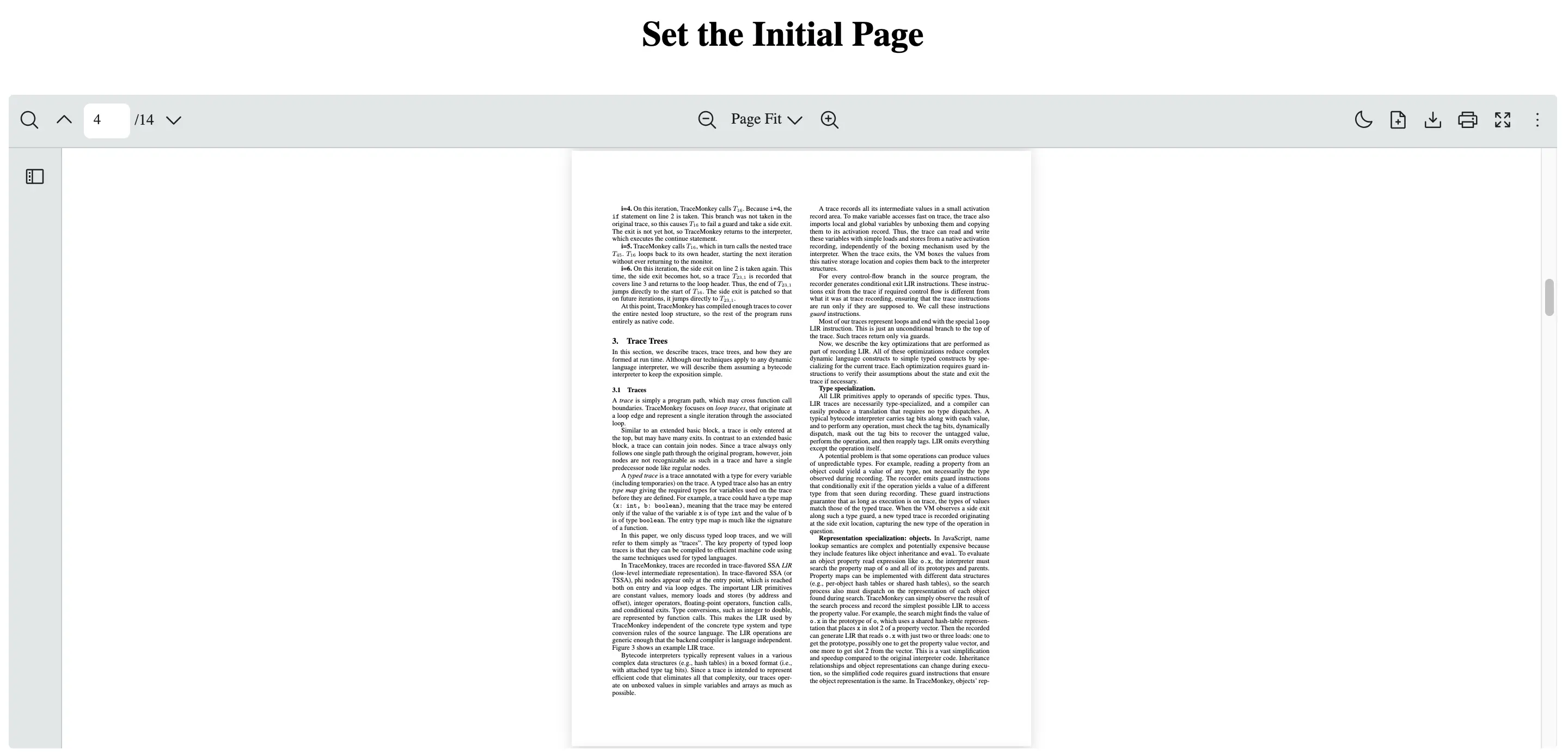
Scenario
Section titled “Scenario”You want the React PDF Viewer component to open on a specific page instead of page 1.
This is useful when:
- Navigating users to important sections of a document
- Restoring a known starting page for demos
- Guiding onboarding flows to a predefined page
What to Use
Section titled “What to Use”You can control which page is shown first when a PDF opens by configuring initialPage in RPProvider. This keeps the behavior integrated with React PDF Kit’s built-in document loading flow.
| Name | Objective |
|---|---|
initialPage | Set which page is shown first when the PDF is loaded via RPProvider. |
import { RPConfig, RPLayout, RPPages, RPProvider } from "@react-pdf-kit/viewer";
const INITIAL_PAGE = 4;const PDF_URL =  "https://raw.githubusercontent.com/mozilla/pdf.js/ba2edeae/web/compressed.tracemonkey-pldi-09.pdf";
const App = () => {  return (    <div      style={{        maxWidth: "calc(100vw - 2rem)",        margin: "0 auto",        padding: "1rem",        display: "grid",        gap: "0.75rem",        textAlign: "center",      }}    >      <h1>Set the Initial Page</h1>      <RPConfig licenseKey="YOUR_DOMAIN_TOKEN">        <RPProvider initialPage={INITIAL_PAGE} src={PDF_URL}>          <RPLayout toolbar>            <RPPages />          </RPLayout>        </RPProvider>      </RPConfig>    </div>  );};
export default App;
import { RPConfig, RPLayout, RPPages, RPProvider } from "@react-pdf-kit/viewer";import { type FC } from "react";
const INITIAL_PAGE = 4;const PDF_URL = "https://raw.githubusercontent.com/mozilla/pdf.js/ba2edeae/web/compressed.tracemonkey-pldi-09.pdf";
const App: FC = () => { return ( <div style={{ maxWidth: "calc(100vw - 2rem)", margin: "0 auto", padding: "1rem", display: "grid", gap: "0.75rem", textAlign: "center", }} > <h1>Set the Initial Page</h1> <RPConfig licenseKey="YOUR_DOMAIN_TOKEN"> <RPProvider initialPage={INITIAL_PAGE} src={PDF_URL}> <RPLayout toolbar> <RPPages /> </RPLayout> </RPProvider> </RPConfig> </div> );};
export default App;Need More Control?
Section titled “Need More Control?”If you need runtime page navigation (For example: Jump to a specific page after user interaction), use usePaginationContext and call goToPage function.
initialPage as your starting point when the PDF first loads while goToPage is for moving the viewer to a specific page later on.