

Basic Toolbar Usage
Default Toolbar
Section titled “Default Toolbar”React PDF provides a default UI toolbar (top bar and left sidebar) which you can readily use without much customization. The Viewer will display the default toolbar when the RPLayout component and use toolbar prop are used.
<RPConfig> <RPProvider src="YOUR_PDF_FILE"> <RPLayout toolbar> <RPPages /> </RPLayout> </RPProvider></RPConfig>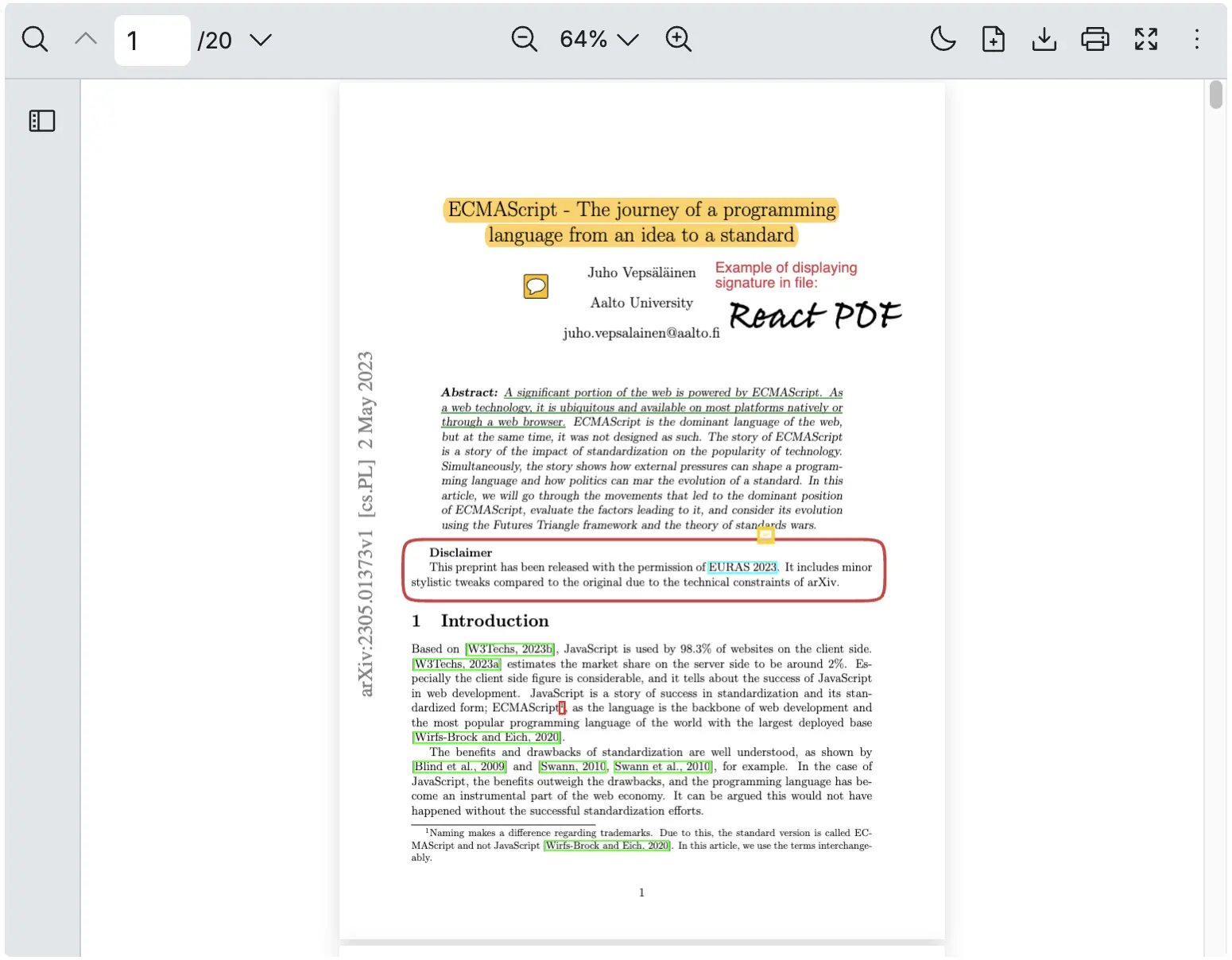
Hide Toolbar
Section titled “Hide Toolbar”To hide the toolbar, simply remove the toolbar prop. This will make the toolbar hide.
<RPConfig> <RPProvider src="YOUR_PDF_FILE"> <RPLayout // Hide toolbar // toolbar > <RPPages /> </RPLayout> </RPProvider></RPConfig>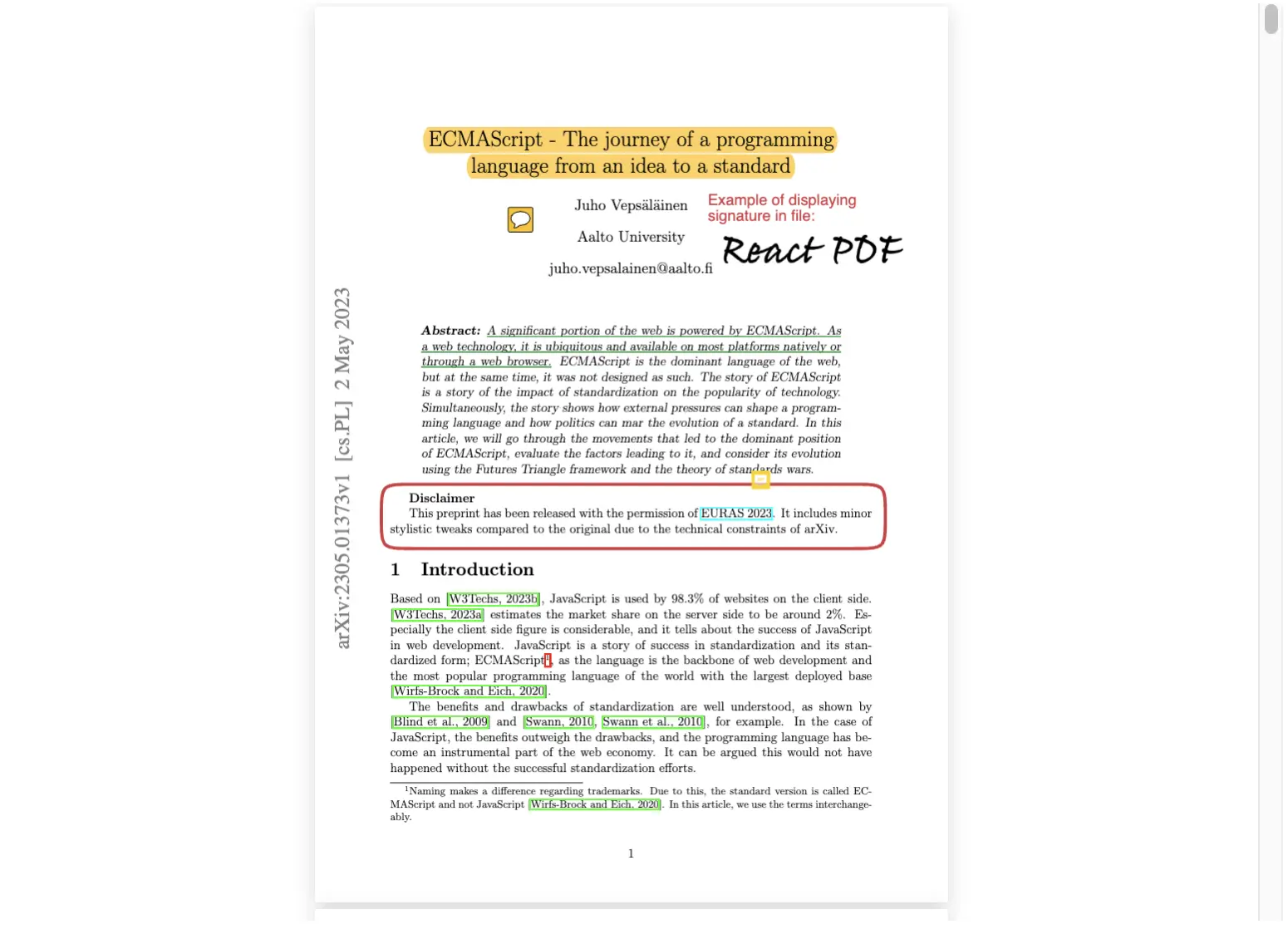
Hide Top Bar
Section titled “Hide Top Bar”To hide the top bar without hiding the left sidebar, use the following setting:
<RPConfig> <RPProvider src="YOUR_PDF_FILE"> <RPLayout toolbar={{ // Hide top bar topbar: false, leftSidebar: { component: <></> } }} > <RPPages /> </RPLayout> </RPProvider></RPConfig>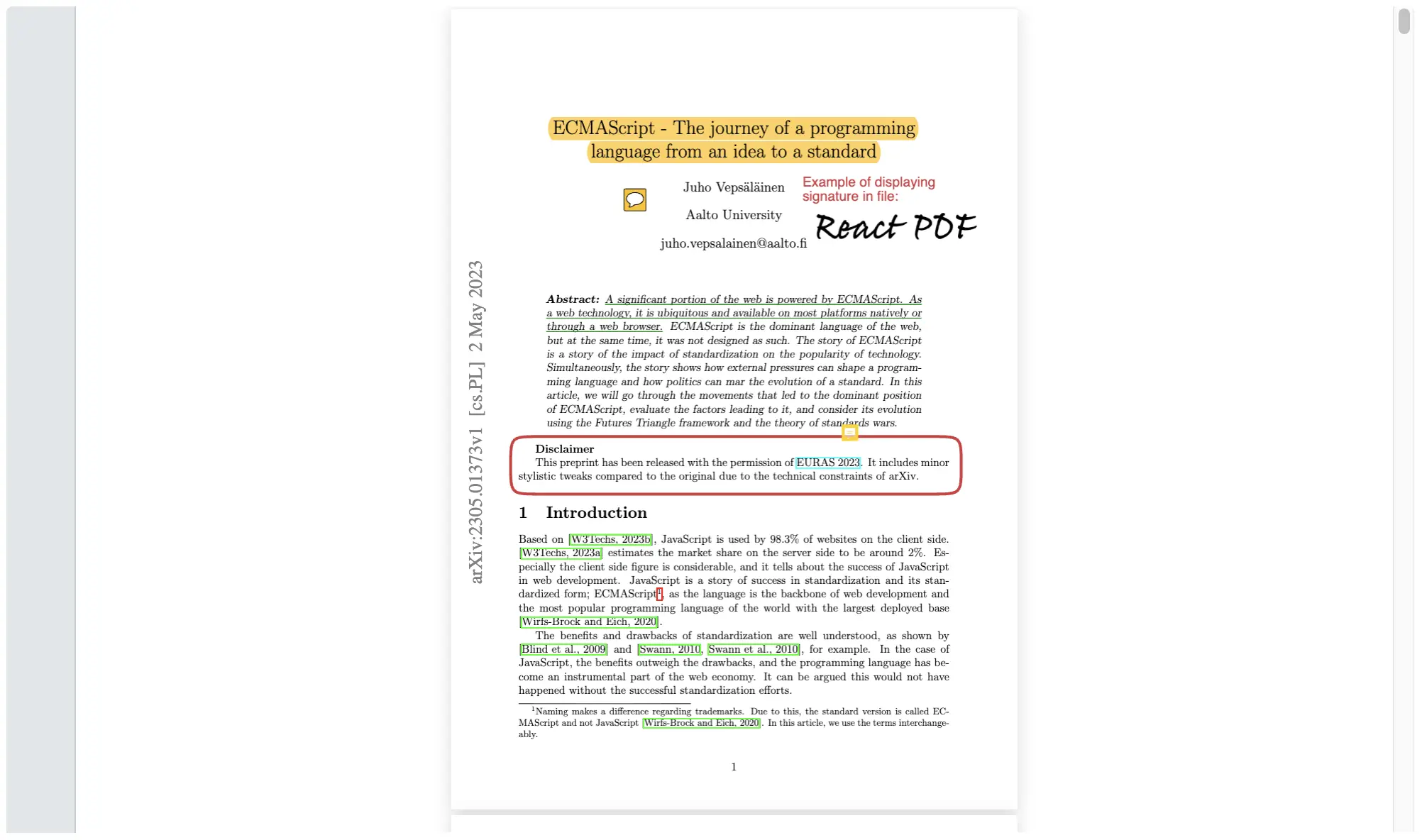
Hide Left Sidebar
Section titled “Hide Left Sidebar”To hide the left sidebar without hiding the top bar, use the following setting:
<RPConfig> <RPProvider src="YOUR_PDF_FILE"> <RPLayout toolbar={{ topbar: { component: <></> } // Hide left sidebar leftSidebar: false, }} > <RPPages /> </RPLayout> </RPProvider></RPConfig>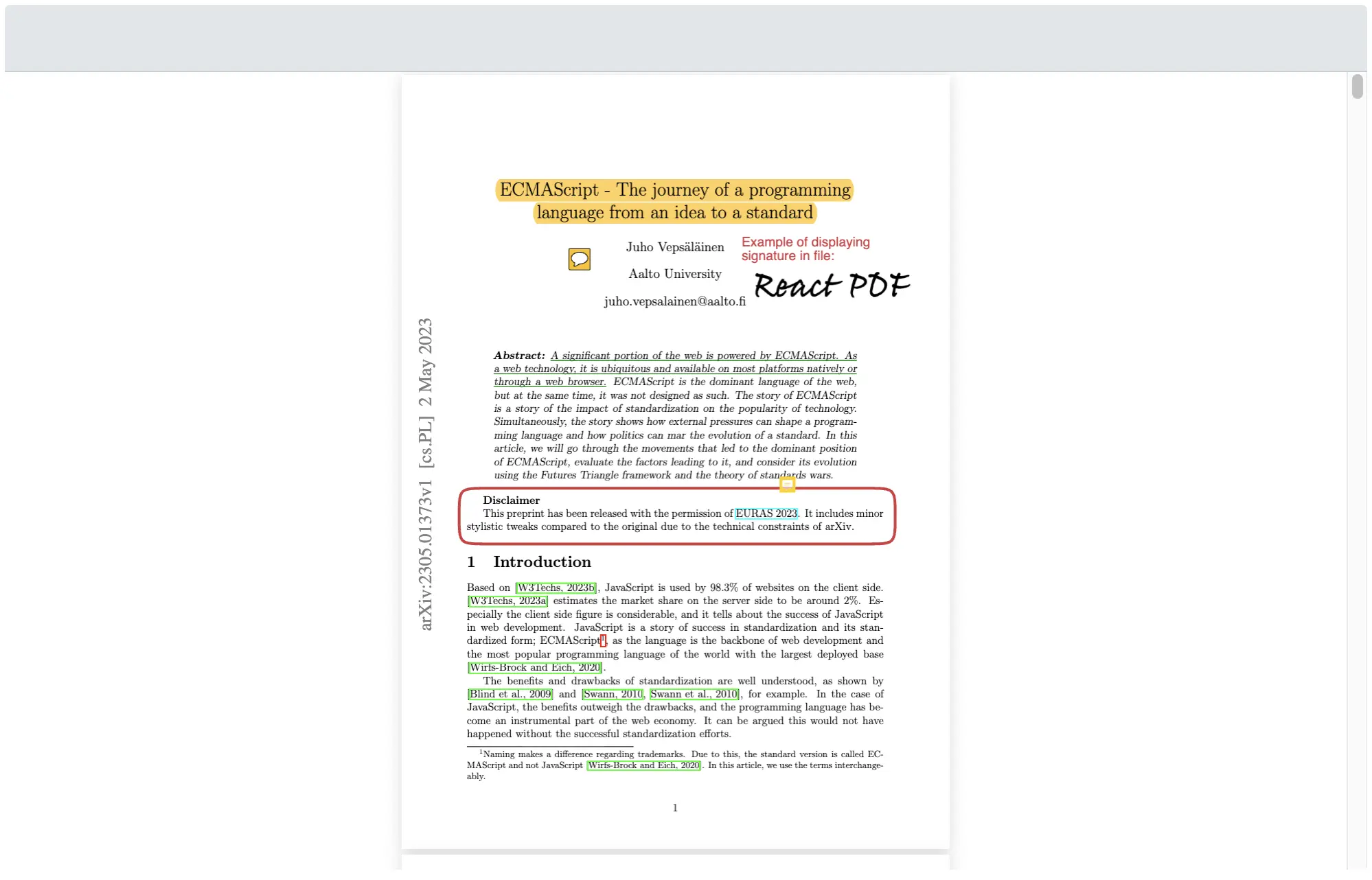
Hide All Icons on Toolbar
Section titled “Hide All Icons on Toolbar”To hide all icons on the toolbar and show the top bar and left sidebar without icons.
<RPConfig> <RPProvider src="YOUR_PDF_FILE"> <RPLayout toolbar={{ // Hide all icons on toolbar topbar: { component: <></> }, leftSidebar: { component: <></> } }} > <RPPages /> </RPLayout> </RPProvider></RPConfig>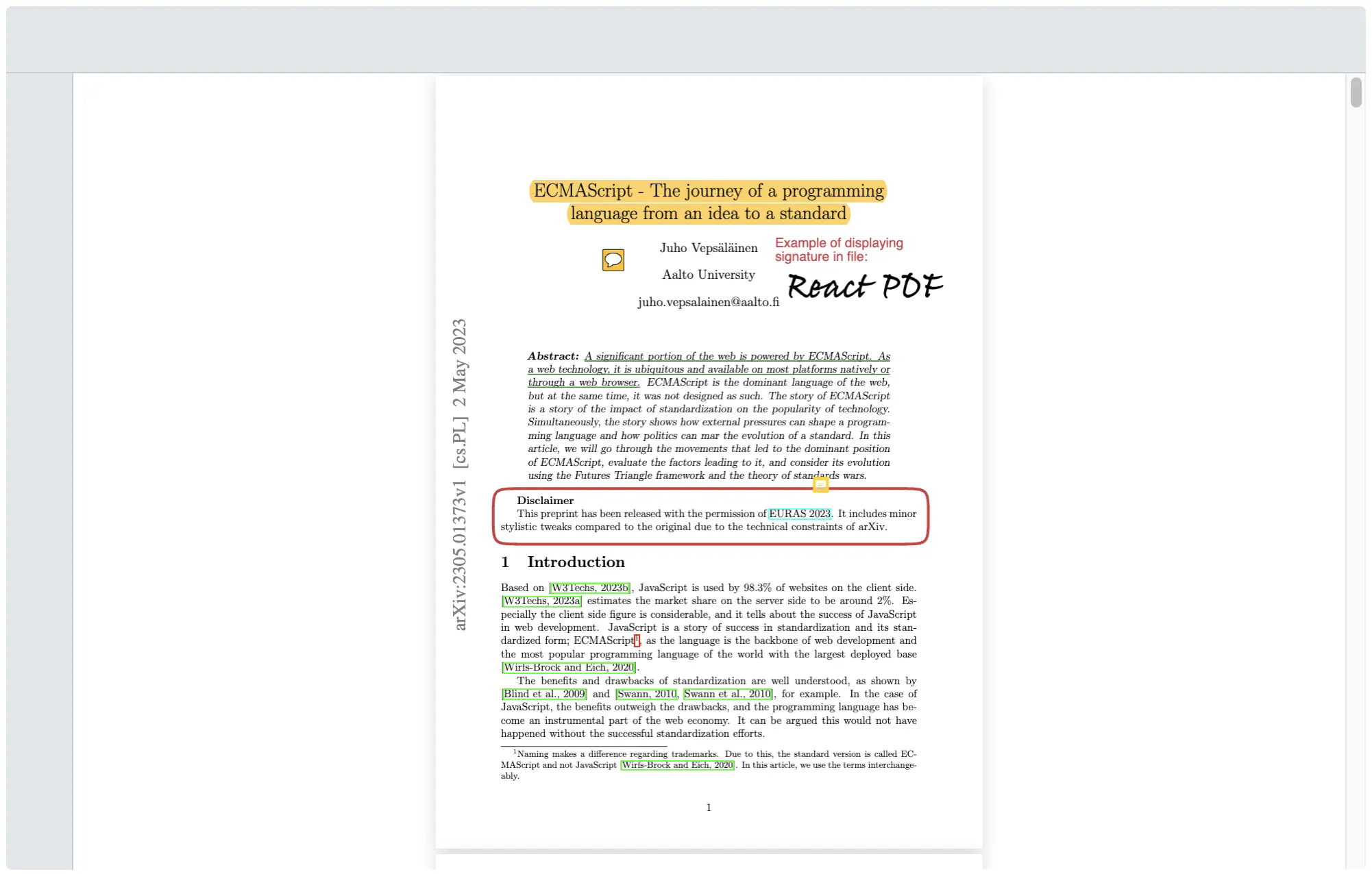
More information for a full list of available toolbar options and their descriptions, see the RPLayout.