

Set the Initial Scale
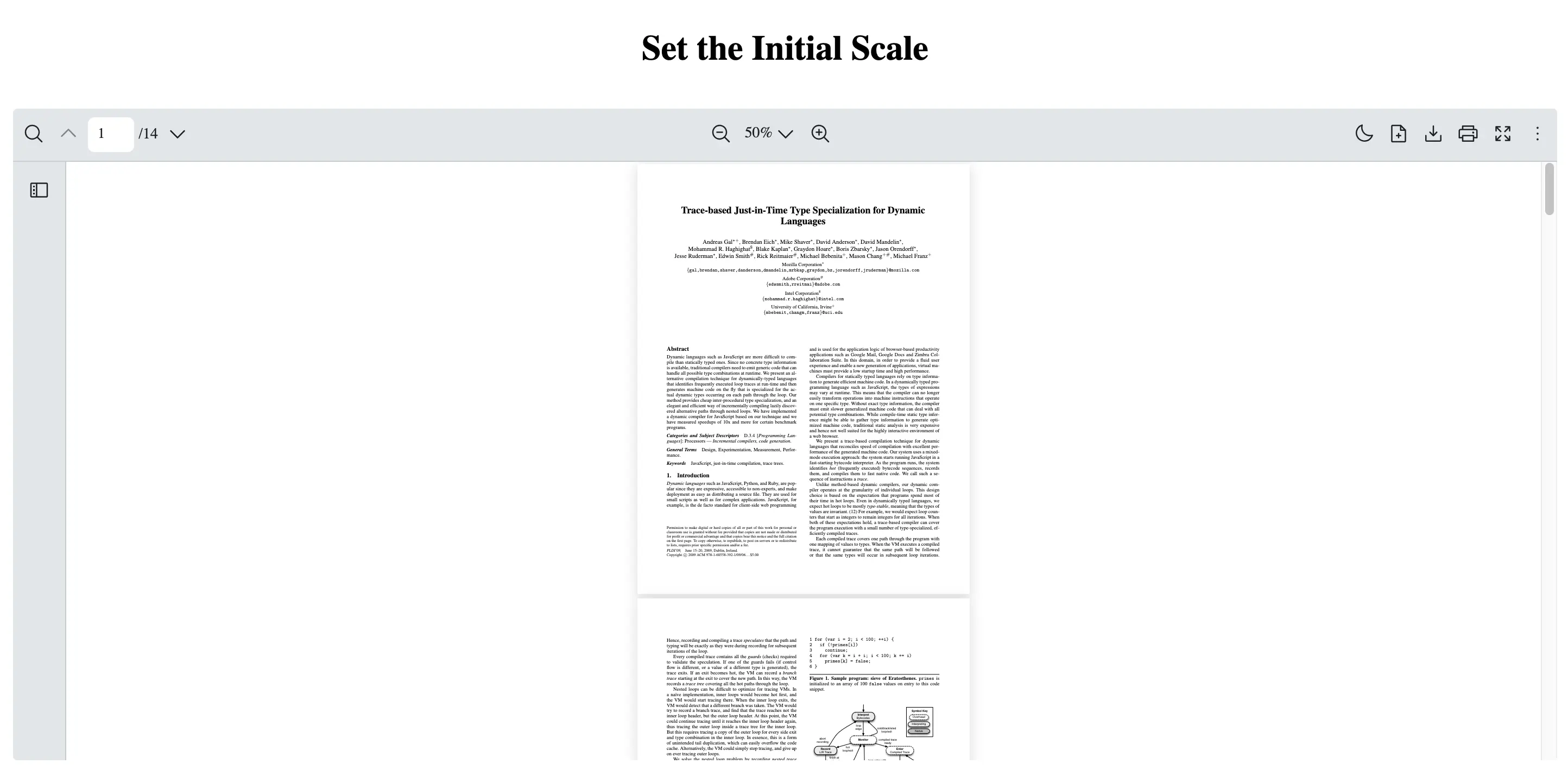
Scenario
Section titled “Scenario”You want the React PDF Viewer component to open at a specific zoom level when the document first loads, instead of using the default zoom level that fits the page to the viewer.
This is useful when:
- Rendering a document at a consistent magnification
- Making dense pages easier to read the first time a file is opened
- Matching a known “starting zoom” for onboarding or support flows
What to Use
Section titled “What to Use”You can control the opening zoom by setting initialScale on RPProvider. That ties your zoom choice to React PDF Kit’s document loading pipeline.
| Name | Objective |
|---|---|
initialScale | Set the zoom level when the PDF is first loaded via RPProvider. |
import { RPConfig, RPLayout, RPPages, RPProvider } from "@react-pdf-kit/viewer";
// Percentage scale from 0 to 100 (50 = 50% zoom).const INITIAL_SCALE = 50;const PDF_URL =  "https://raw.githubusercontent.com/mozilla/pdf.js/ba2edeae/web/compressed.tracemonkey-pldi-09.pdf";
const App = () => {  return (    <div      style={{        maxWidth: "calc(100vw - 2rem)",        margin: "0 auto",        padding: "1rem",        display: "grid",        gap: "0.75rem",        textAlign: "center",      }}    >      <h1>Set the Initial Scale</h1>      <RPConfig licenseKey="YOUR_DOMAIN_TOKEN">        <RPProvider initialScale={INITIAL_SCALE} src={PDF_URL}>          <RPLayout toolbar>            <RPPages />          </RPLayout>        </RPProvider>      </RPConfig>    </div>  );};
export default App;
import { RPConfig, RPLayout, RPPages, RPProvider } from "@react-pdf-kit/viewer";import { type FC } from "react";
// Percentage scale from 0 to 100 (50 = 50% zoom).const INITIAL_SCALE = 50;const PDF_URL = "https://raw.githubusercontent.com/mozilla/pdf.js/ba2edeae/web/compressed.tracemonkey-pldi-09.pdf";
const App: FC = () => { return ( <div style={{ maxWidth: "calc(100vw - 2rem)", margin: "0 auto", padding: "1rem", display: "grid", gap: "0.75rem", textAlign: "center", }} > <h1>Set the Initial Scale</h1> <RPConfig licenseKey="YOUR_DOMAIN_TOKEN"> <RPProvider initialScale={INITIAL_SCALE} src={PDF_URL}> <RPLayout toolbar> <RPPages /> </RPLayout> </RPProvider> </RPConfig> </div> );};
export default App;Need More Control?
Section titled “Need More Control?”If you need to change zoom after load (for example: custom buttons, gestures, or reacting to user interaction), use useZoomContext and call setZoomLevel from a component that is a child of RPProvider.
Think of initialScale as the zoom you see when the file first opens, and setZoomLevel when you want to change it later on.