

Add an Exit Button for the Full Screen Mode
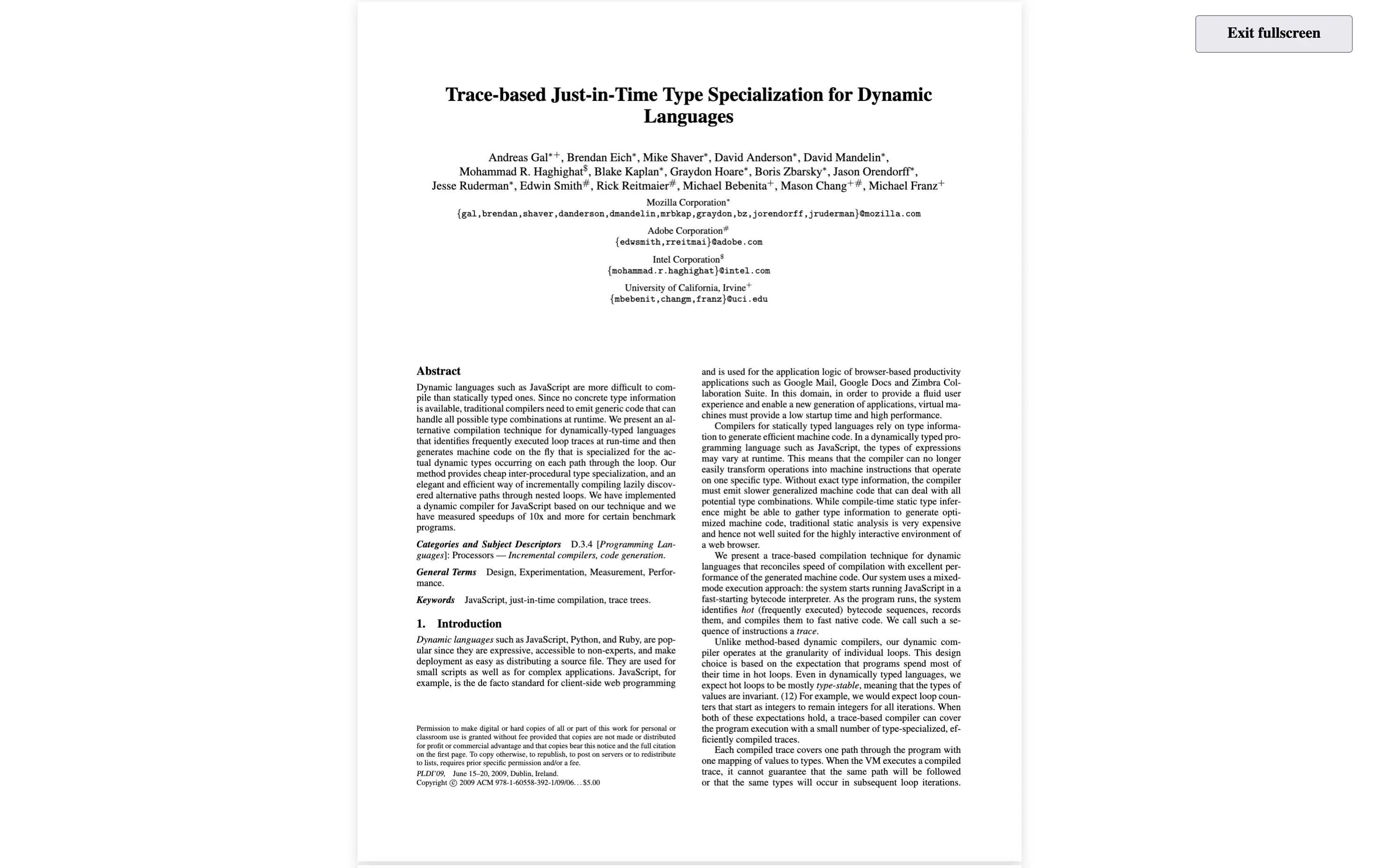
Scenario
Section titled “Scenario”In some workflows, users enter full screen mode to focus on reading a PDF in a React PDF Viewer component. They may need a fast way to exit without relying on keyboard shortcuts like Esc.
This example shows how to:
- Detect whether full screen is active
- Render an exit button only when needed
- Mount that button inside the PDF pages layer so it remains visible in full screen mode
What to Use
Section titled “What to Use”You can fully control when and where an exit control appears while keeping it integrated with React PDF Kit’s full screen lifecycle.
The useFullScreenContext hook provides full screen state and actions for the React PDF Viewer component.
Here are the functions for this example:
| Name | Objective |
|---|---|
isFullScreen | Indicate whether the viewer is currently in full screen mode, so the exit button is rendered only when needed |
toggleFullScreen | Toggle full screen mode and is used as the exit action when full screen is active |
isSupported | Indicate whether full screen is supported by the current browser/runtime |
After integrating full screen state with useFullScreenContext, you can use React DOM and browser APIs to mount the button in the viewer layer.
| Name | Objective |
|---|---|
createPortal | Render the exit button into the viewer pages container instead of the default React tree position |
MutationObserver | Watch DOM updates so mounting waits until [data-rp="pages"] exists |
Example
Section titled “Example”-
Build an
ExitFullScreenButtoncomponent.Create a component that reads full screen state from
useFullScreenContext, finds the viewer mount target, and only renders when full screen is active and supported.ExitFullScreenButton.jsx import { useFullScreenContext } from "@react-pdf-kit/viewer";import { useEffect, useState } from "react";import { createPortal } from "react-dom";export const ExitFullScreenButton = () => {const { isFullScreen, toggleFullScreen, isSupported } = useFullScreenContext();const [target, setTarget] = useState(null);useEffect(() => {const findPages = () => {const pages = document.querySelector('[data-rp="pages"]');setTarget(pages ? { element: pages, type: "pages" } : null);};findPages();const observer = new MutationObserver(findPages);observer.observe(document.body, { childList: true, subtree: true });return () => observer.disconnect();}, []);if (!target || !isSupported || !isFullScreen) return null;const button = (<button aria-label="Exit Full Screen Mode" onClick={toggleFullScreen}>Exit fullscreen</button>);return createPortal(<div style={{ position: "absolute", top: "1rem", right: "2rem", zIndex: 1000 }}>{button}</div>,target.element,);};ExitFullScreenButton.tsx import { useFullScreenContext } from "@react-pdf-kit/viewer";import type { FC } from "react";import { useEffect, useState } from "react";import { createPortal } from "react-dom";type TargetMount = {element: Element;type: "pages";};export const ExitFullScreenButton: FC = () => {const { isFullScreen, toggleFullScreen, isSupported } = useFullScreenContext();const [target, setTarget] = useState<TargetMount | null>(null);useEffect(() => {const findPages = () => {const pages = document.querySelector('[data-rp="pages"]');setTarget(pages ? { element: pages, type: "pages" } : null);};findPages();const observer = new MutationObserver(findPages);observer.observe(document.body, { childList: true, subtree: true });return () => observer.disconnect();}, []);if (!target || !isSupported || !isFullScreen) return null;const button = (<button aria-label="Exit Full Screen Mode" onClick={toggleFullScreen}>Exit fullscreen</button>);return createPortal(<div style={{ position: "absolute", top: "1rem", right: "2rem", zIndex: 1000 }}>{button}</div>,target.element,);}; -
Register the button inside your viewer app.
Render
<ExitFullScreenButton />insideRPProviderso it can access viewer context and interact with the current full screen state.App.jsx import { RPConfig, RPLayout, RPPages, RPProvider } from "@react-pdf-kit/viewer";import { ExitFullScreenButton } from "./components/ExitFullScreenButton";const src ="https://raw.githubusercontent.com/mozilla/pdf.js/ba2edeae/web/compressed.tracemonkey-pldi-09.pdf";const App = () => {return (<RPConfig licenseKey="YOUR_DOMAIN_TOKEN"><div style={{ height: "660px" }}><RPProvider src={src}><ExitFullScreenButton /><RPLayout toolbar><RPPages /></RPLayout></RPProvider></div></RPConfig>);};export default App;App.tsx import { RPConfig, RPLayout, RPPages, RPProvider } from "@react-pdf-kit/viewer";import { ExitFullScreenButton } from "./components/ExitFullScreenButton";const src ="https://raw.githubusercontent.com/mozilla/pdf.js/ba2edeae/web/compressed.tracemonkey-pldi-09.pdf";const App = () => {return (<RPConfig licenseKey="YOUR_DOMAIN_TOKEN"><div style={{ height: "660px" }}><RPProvider src={src}><ExitFullScreenButton /><RPLayout toolbar><RPPages /></RPLayout></RPProvider></div></RPConfig>);};export default App;
useFullScreenContextmust be used underRPProvider.- This implementation intentionally returns
nullunlessisSupported && isFullScreento keep the UI clean. - The viewer pages container is queried with
[data-rp="pages"], then observed viaMutationObserverfor safe portal mounting. createPortalallows you to place the button where it is most useful during full screen mode, independent of normal React tree layout.