

Handle Error for an Invalid PDF File
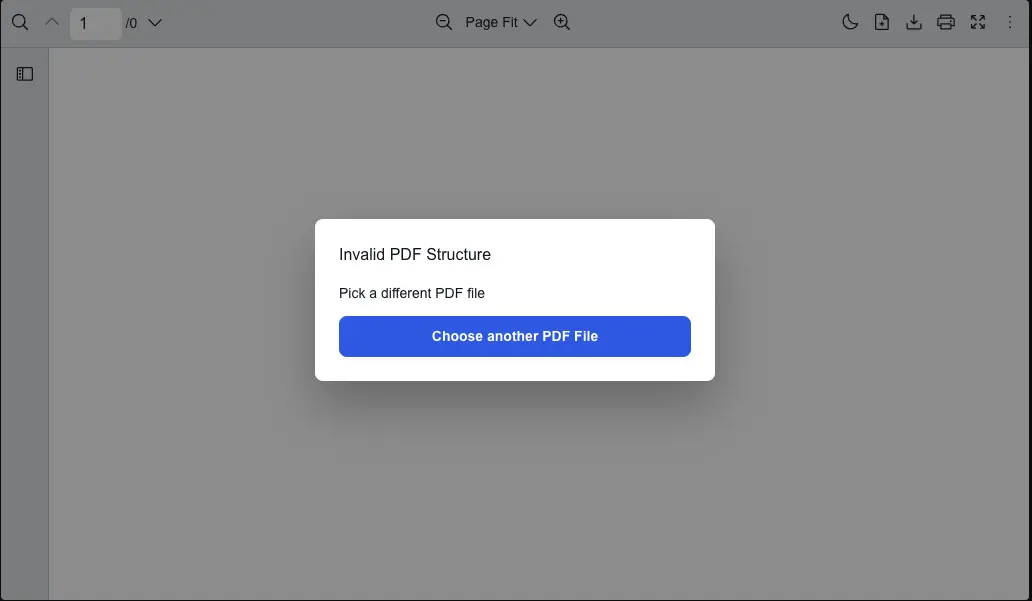
Scenario
Section titled “Scenario”When the React PDF viewer tries to open a PDF that is not valid (corrupt file, wrong format, or truncated data), React PDF Kit surfaces the failure through onLoadError on RPProvider. You can use that hook point to:
- Detect that the document failed to load
- Show a message or modal so users understand the file is invalid
- Offer a way to select another PDF file using
useOpenFileContextso a child ofRPProvidercan callopenFile()and use the built-in file dialog
After the user picks a valid PDF, the viewer loads normally and you can hide the error validation.
What to Use
Section titled “What to Use”Use the src prop from RPProvider to load a PDF file. To handle load failures or clear error state, use onLoadError and onLoaded props respectively.
| Name | Objective |
|---|---|
src | Handle a PDF file from different sources such as URL or Blob |
onLoadError | Run when the PDF fails to load and update the UI state (e.g. show modal) |
onLoaded | Run when the PDF loads successfully; clear error state |
To retry with a local file after an error, keep src in React state and use the useOpenFileContext to update the document.
| Name | Objective |
|---|---|
openFile | Update the document without wiring your own <input type="file"> |
import { useState, type CSSProperties } from "react";import {  RPConfig,  RPProvider,  RPLayout,  RPPages,  useOpenFileContext,} from "@react-pdf-kit/viewer";
// Replace with an invalid URL while testing if you need to reproduce the error UI.const SAMPLE_PDF_SRC =  "https://raw.githubusercontent.com/mozilla/pdf.js/ba2edeae/web/compressed.tracemonkey-pldi-09.pdf";
const overlayStyle: CSSProperties = {  position: "fixed",  inset: 0,  // Above the viewer chrome so the dialog fully covers the app.  zIndex: 2147483647,  display: "grid",  placeItems: "center",  background: "rgba(0, 0, 0, 0.45)",  padding: 16,  pointerEvents: "auto",};
const dialogStyle: CSSProperties = {  maxWidth: 400,  width: "100%",  padding: 24,  borderRadius: 8,  background: "#fff",  color: "#111827",  boxShadow: "0 25px 50px rgba(0, 0, 0, 0.25)",};
const primaryButtonStyle: CSSProperties = {  marginTop: 12,  padding: "10px 16px",  borderRadius: 8,  border: "none",  background: "#2563eb",  color: "#fff",  fontSize: 14,  fontWeight: 600,  cursor: "pointer",  width: "100%",};
type InvalidPdfErrorOverlayProps = {  message: string;};
// useOpenFileContext only works under RPProvider, so this stays inside RPProvider below.function InvalidPdfErrorOverlay({ message }: InvalidPdfErrorOverlayProps) {  const { openFile } = useOpenFileContext();
  return (    <div      style={overlayStyle}      role="alertdialog"      aria-modal="true"      aria-labelledby="invalid-pdf-title"    >      <div style={dialogStyle}>        <h2 id="invalid-pdf-title" style={{ marginTop: 0 }}>          {message}        </h2>        <p style={{ marginTop: 16, marginBottom: 0, fontSize: 14 }}>          Pick a different PDF file.        </p>        {/* Same file dialog as the built-in open-file tool; updates the loaded PDF. */}        <button type="button" style={primaryButtonStyle} onClick={openFile}>          Choose PDF file…        </button>      </div>    </div>  );}
export function AppPdfViewer() {  const [errorMessage, setErrorMessage] = useState<string | null>(null);
  const handleLoadError = (err: unknown) => {    const fallback = "Could not load this PDF.";    setErrorMessage(err instanceof Error ? err.message : fallback);  };
  const handleLoaded = () => {    // Successful load (including after the user picks another file) clears the error UI.    setErrorMessage(null);  };
  return (    <div style={{ position: "relative" }}>      <RPConfig licenseKey="YOUR_DOMAIN_TOKEN">        <RPProvider          src={SAMPLE_PDF_SRC}          onLoadError={handleLoadError}          onLoaded={handleLoaded}        >          {errorMessage ? (            <InvalidPdfErrorOverlay message={errorMessage} />          ) : null}          <RPLayout toolbar>            <RPPages />          </RPLayout>        </RPProvider>      </RPConfig>    </div>  );}